 PocketDesk
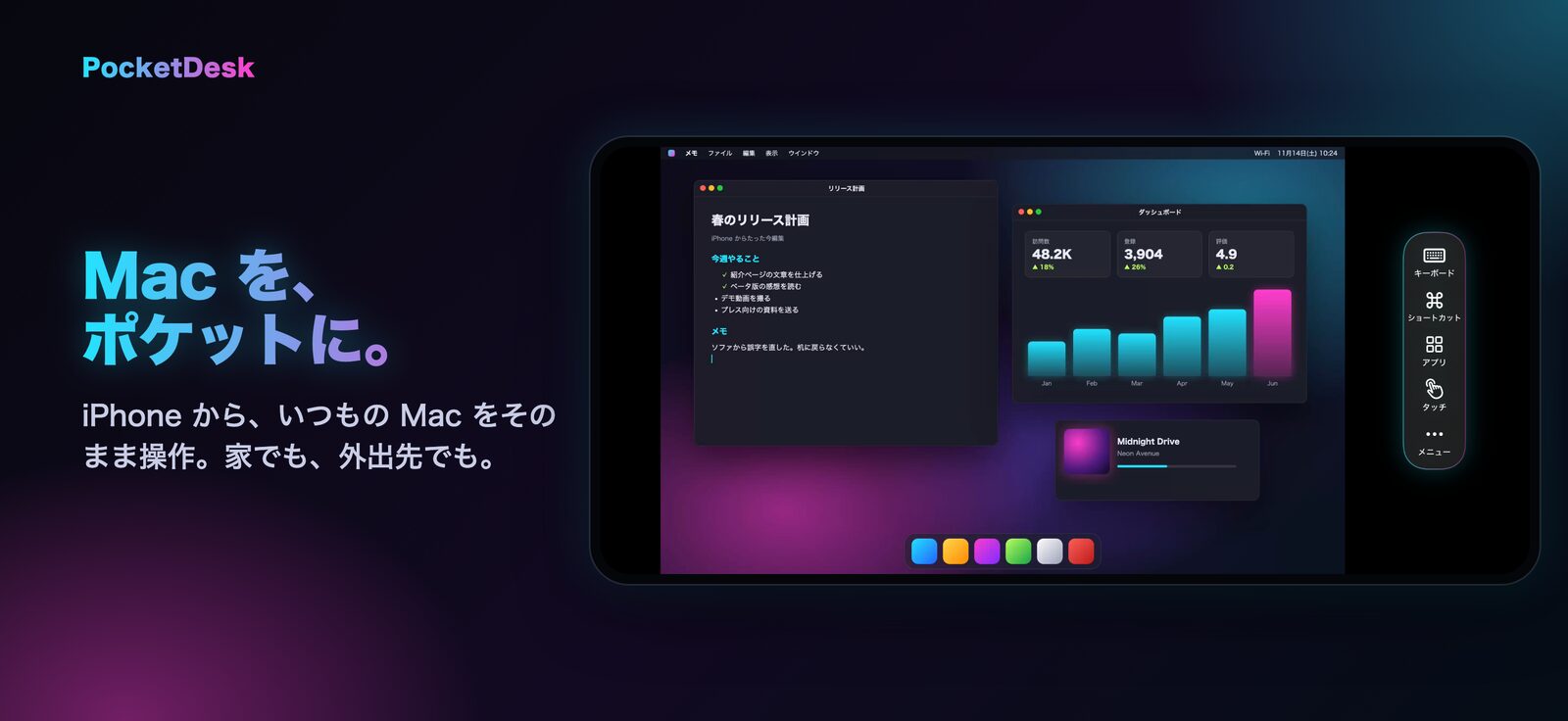
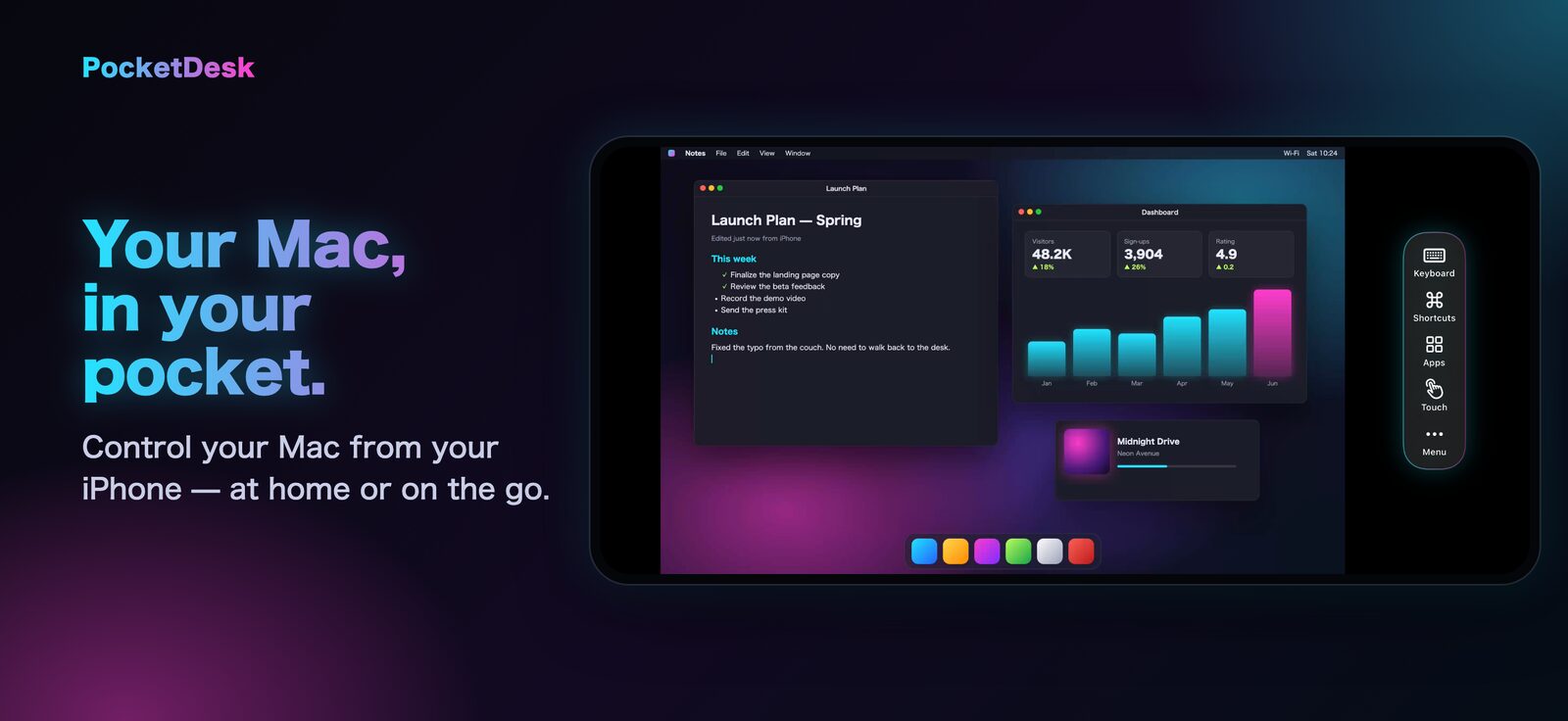
Mac を、ポケットに。Your Mac, in your pocket.
iPhone から、いつもの Mac をそのまま操作。触って押す、なぞってスクロール。通信は端末ごとの鍵で暗号化され、ペアリングした機器とだけつながります。
Control your Mac from your iPhone, just as if you were in front of it. Tap to click, swipe to scroll. Every connection is encrypted with per-device keys and only talks to devices you've paired.
Host は macOS 14 以降。Apple の公証済み(Developer ID)です。
PocketDesk Host requires macOS 14 or later and is notarized by Apple (Developer ID).
はじめかた
Getting started
- 操作したい Mac に PocketDesk Host を入れる上のボタンでダウンロードし、zip を開いて「アプリケーション」フォルダに入れて開きます。メニューバーに PocketDesk のアイコンが出ます。
- Mac で 2 つの許可をオンにする「システム設定」→「プライバシーとセキュリティ」で、「画面収録とシステムオーディオ録音」と「アクセシビリティ」の PocketDesk Host をオンにします(画面を送る・クリックや文字を届けるため)。
- iPhone でペアリングメニューバーの PocketDesk →「新しい端末を追加…」で出る QR コードを、iPhone の PocketDesk で読み取ります。次からは 1 タップでつながります。
- Install PocketDesk Host on the Mac you want to controlDownload it above, unzip it, move it to your Applications folder and open it. A PocketDesk icon appears in the menu bar.
- Turn on two permissions on the MacIn System Settings > Privacy & Security, turn on PocketDesk Host under "Screen & System Audio Recording" and "Accessibility" (to send the screen and to deliver clicks and typing).
- Pair your iPhoneChoose PocketDesk > "Add New Device…" in the menu bar and scan the QR code with the PocketDesk app. After that, connecting is one tap.
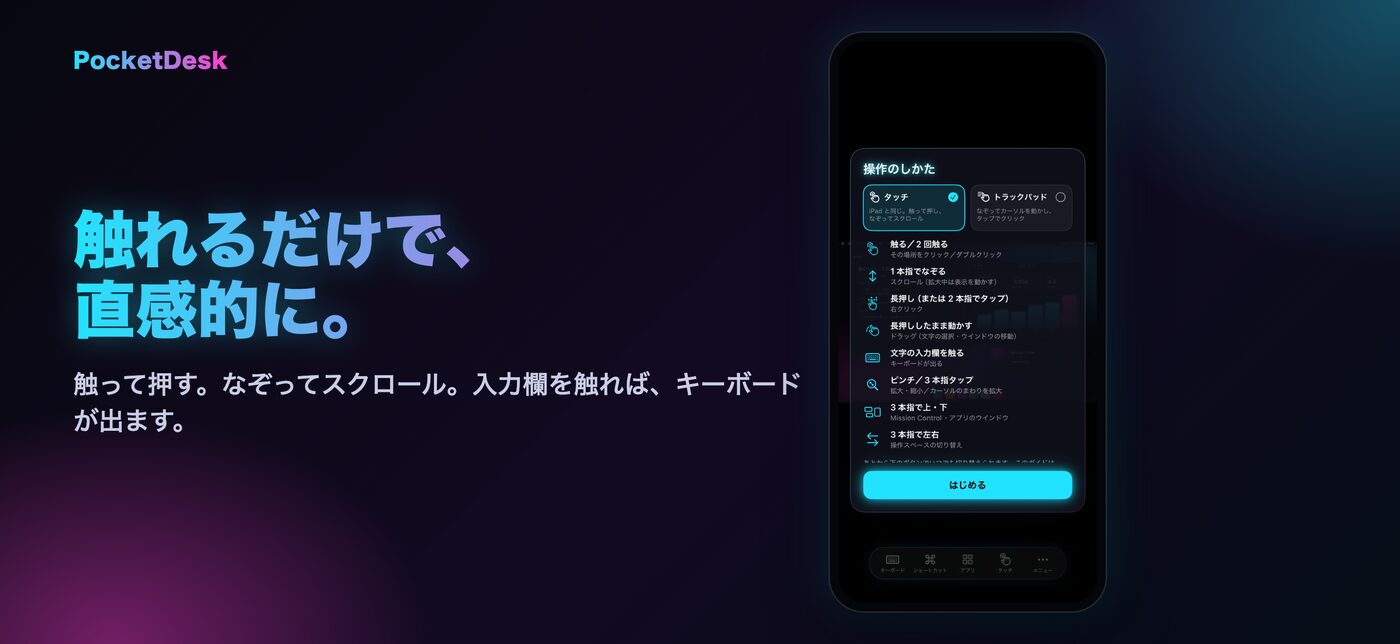
触れるだけで、直感的に。
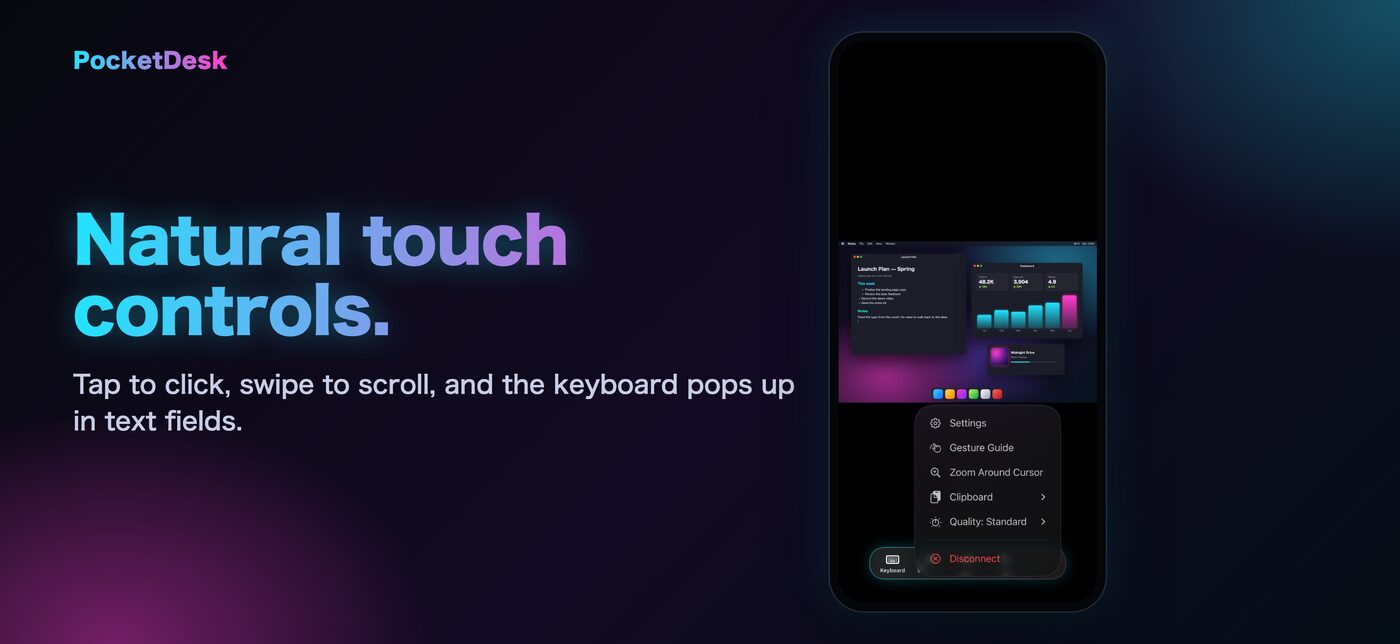
Natural touch controls.
触った場所をクリック、1 本指でなぞればスクロール(慣性つき)、長押しで右クリックやドラッグ。Mac の文字の入力欄を触れば、キーボードが自動で出ます。カーソルで細かく動かしたいときはトラックパッドモードに切り替えられます。
Tap where you want to click, swipe with one finger to scroll (with momentum), long-press for right-click or drag. Tap a text field on your Mac and the keyboard appears. Prefer a pointer? Switch to trackpad mode anytime.
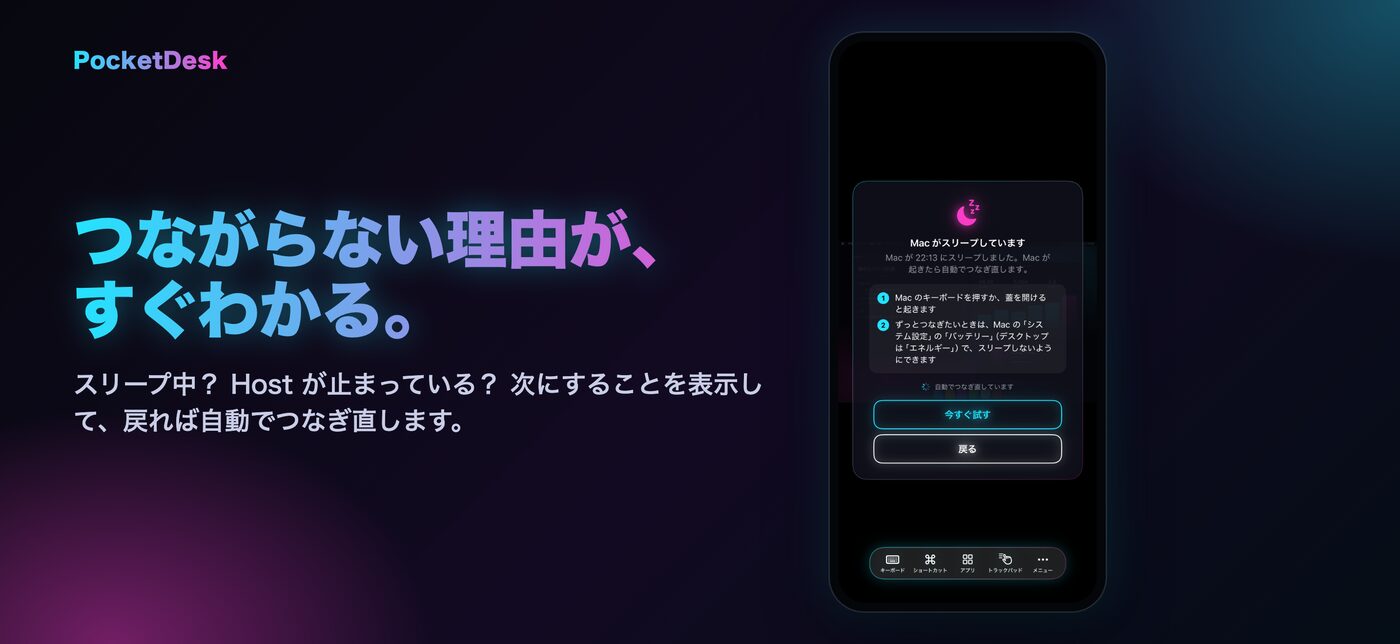
つながらない理由が、すぐわかる。
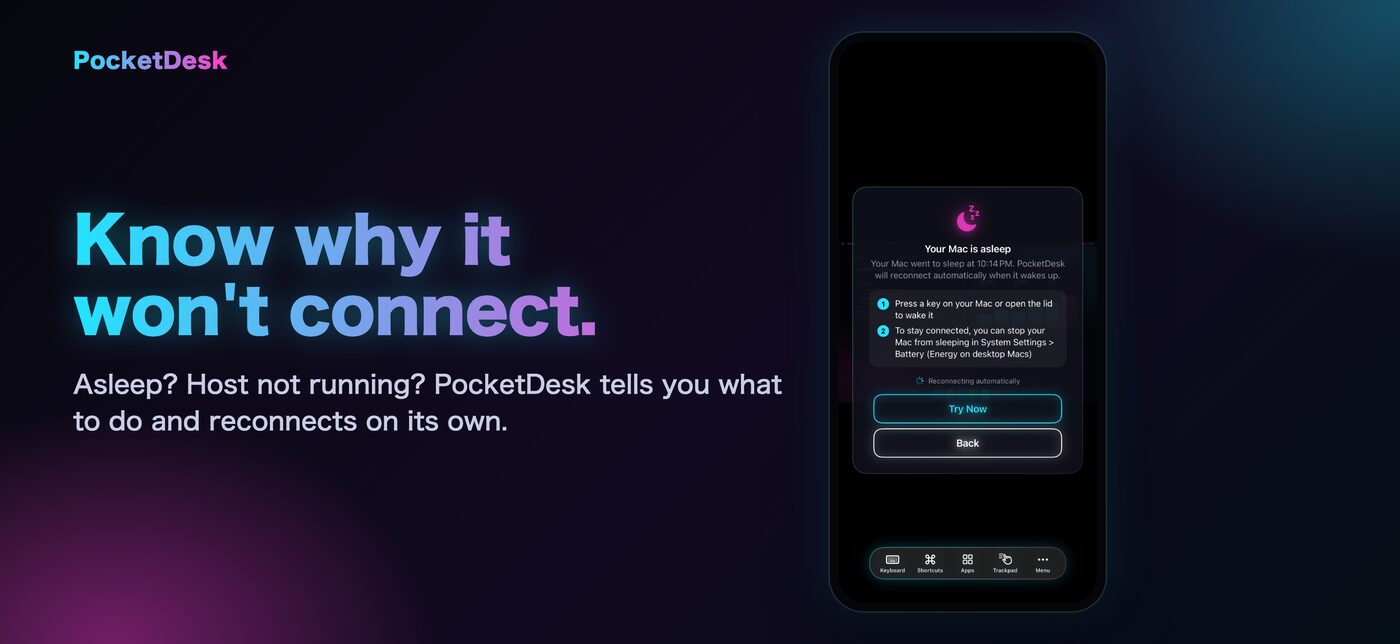
Know why it won't connect.
Mac がスリープした、Host が止まっている、別の Wi-Fi にいる、Tailscale がオフ……。理由と次にすることを表示し、Mac が戻れば自動でつなぎ直します。
Your Mac went to sleep, Host isn't running, you're on a different Wi-Fi, Tailscale is off… PocketDesk tells you why and what to do, and reconnects automatically when your Mac is back.
安全のために
Built for privacy and security
端末ごとの鍵で暗号化
Per-device encryption
Noise プロトコル(X25519・ChaCha20-Poly1305)で暗号化と相互認証。鍵は各機器のキーチェーンにだけ保存されます。
Encrypted and mutually authenticated with the Noise protocol (X25519, ChaCha20-Poly1305). Keys stay in each device's Keychain.
Mac の前で承認
Approved at the Mac
新しい端末は、Mac に出る QR コードか、両方に出る 6 桁の番号を確かめて許可したものだけ。いつでも取り消せます。
New devices need the QR code shown on the Mac, or a matching 6-digit code approved at the Mac. Revoke access anytime.
サーバーを通らない
No servers in between
画面も操作も、あなたの機器どうしで直接やりとりします。PocketDesk のサーバーはなく、データを集めません。
Your screen and input go directly between your own devices. There are no PocketDesk servers and no data collection.
操作中はわかる
Always visible
操作されている間は Mac の画面に表示が出て、その場で切断できます。iPhone 側は Face ID でロックできます。
While connected, the Mac shows who is in control and can disconnect them instantly. The iPhone app can lock with Face ID.
外出先から使うには
Using it away from home
家の Wi-Fi では設定なしでつながります。外から使うときは、無料の Tailscale を使います。
On your home Wi-Fi it just works. To connect from anywhere, use the free Tailscale.
- Mac と iPhone の両方に Tailscale を入れる同じアカウントでログインします。
- 家の Wi-Fi で一度 PocketDesk をつなぐMac の Tailscale のアドレスを自動で覚えます。
- 外では iPhone の Tailscale をオンにしてつなぐMac は電源を入れたまま(スリープさせない)にしておきます。
- Install Tailscale on both your Mac and iPhoneSign in with the same account.
- Connect once with PocketDesk on your home Wi-FiPocketDesk remembers your Mac's Tailscale address automatically.
- When you're out, turn on Tailscale on your iPhone and connectKeep your Mac powered on and awake.
動作環境
Requirements
- iPhone:iOS 17 以降
- 操作される Mac(PocketDesk Host):macOS 14 以降
- Mac から操作する場合(PocketDesk for Mac):macOS 15 以降
- iPhone: iOS 17 or later
- Mac being controlled (PocketDesk Host): macOS 14 or later
- Controlling from a Mac (PocketDesk for Mac): macOS 15 or later